 Freshslate
How to hide reposts on TikTok
You want your reposts off other people's screens, but you can't find a setting for it. That's because there isn't one. Here's who can actually see your TikTok reposts, and the real ways to hide them from everyone, from followers, or from one person.
Quick answer: TikTok has no switch to hide reposts or make the Reposts tab private. Anyone who can see your profile can open your Reposts tab, and reposts can show up in other people's For You feeds with your profile photo and nickname on them. Your real options are: remove the reposts you don't want seen, make your whole account private (Profile → ☰ → Settings and privacy → Privacy → Private account) so only your followers see them, or block or remove a specific person.
Is there a setting to hide reposts?
No. This surprises people because TikTok lets you hide so many other things. You can make your Liked videos private (new accounts hide them by default). Your Favorites tab is private by default. You can hide your Following list. But reposts are different. They're meant to be shared, so TikTok doesn't give you a "Reposts: Only me" option.
Going by TikTok's own menus and what users report, there's no toggle for the Reposts tab in most versions anywhere in Settings and privacy → Privacy. If you read a guide that says "just turn off reposts in settings", check it against your own app. TikTok tests features in some regions, so menus can change, but as of now the switch isn't there for nearly everyone.
Be careful with "hide reposts" apps. No outside app can add a hidden setting to TikTok. Anything that promises to make reposts private while leaving them on your profile isn't being straight with you. The only way to make a repost truly invisible is to remove it or limit who can see your account.
So "hiding" reposts really means picking one of the options below. Which one is right depends on who you're hiding them from.
Who can see my reposts on TikTok?
Before you change anything, it helps to know where reposts actually show up. There are two main places, plus the replies people leave on them.
1. Your Reposts tab
This is the tab on your profile with the two-arrows icon. It lists every video you've reposted and not removed.
- Public account: anyone who opens your profile can tap the tab and scroll through all your reposts. That includes people who don't follow you and people who aren't logged in on the website.
- Private account: only your followers can see it, and you approve who follows you. Everyone else sees a "This account is private" message instead of your tabs.
- Blocked people: can't see your profile at all.
2. Other people's feeds
When you repost something, TikTok says it can show up in the For You feed of your friends and the wider community. On TikTok, "friends" means people you follow who also follow you back. The video is labeled as a repost, with your profile photo and nickname on it, so people can tell it came from you. TikTok decides who gets it, so not every friend will see every repost. On a private account, reposts only go to your followers' For You feeds.
Followers who aren't friends (they follow you, you don't follow back) and strangers can still find your reposts by visiting your profile, if your account is public.
3. Replies to your reposts
When you repost, you may be able to add repost text, and people who can see your repost can reply to it. On a public account, your repost text and the replies are visible to others on your profile too. One thing to know: your comment privacy settings don't apply to repost replies, so limiting who can comment on your videos won't stop replies on a repost. Removing the repost deletes all of its replies.
Who can't see them
- Nobody sees a repost after you remove it.
- Nobody can see a list of reposts you removed.
- If the original video is deleted or made private by its creator, people can't watch it through your repost.
For a side-by-side look at reposts, likes, favorites and watch history, see can people see your TikTok reposts, likes and favorites.
Your four real options
Here's everything that actually works, from smallest change to biggest.
- Remove the reposts you don't want seen. The only way to hide a specific repost from everyone while staying public.
- Remove or block one person. Hides your whole profile, reposts included, from that person.
- Make your account private. Hides your reposts (and everything else) from anyone who isn't an approved follower.
- Change the habit. Use Favorites instead of Repost for videos you want to keep for yourself. Favorites stay private unless you choose to show them.
Each option is explained below, with exactly who it hides your reposts from and what it costs you.
Hide reposts from everyone
If you don't want anyone to see a certain repost, remove it. There's no way to keep it but make it invisible.
- Tap Profile, then the Reposts tab (two arrows).
- Open the video.
- Tap Share, then tap Delete repost (some versions say Remove repost). You can also press and hold the video and tap Remove repost.
Full steps for iPhone, Android and the website, plus fixes for when the button won't show, are in how to delete a repost on TikTok.
When you remove every repost, the tab has nothing to show, and in most versions of the app it disappears from your profile. That's the closest thing to "turning off" your Reposts tab. People can't snoop through what isn't there.
What if you want to keep the videos for yourself? Before removing a repost, tap the Favorites button (the bookmark) on it. Then it sits in your private Favorites tab and leaves your public Reposts tab. Check that your Favorites are actually private: Profile → ☰ → Settings and privacy → Privacy → Favorite videos (the wording can differ by version). If the Favorites tab on your profile shows a lock icon, only you can see it.
If you have more than a handful of reposts, going one by one takes a while. How to delete all reposts on TikTok covers ways to do it faster.
Hide reposts from followers or friends
People search "how to hide reposts on TikTok from followers" and "from friends" a lot. Here's the honest truth: you can't hide reposts from people who follow you while still letting them see your other content. Followers who can see your profile can see your Reposts tab, and reposts can show up in your friends' For You feeds.
What you can do:
- Remove the reposts. Then nobody sees them, followers included.
- Remove specific followers. In most versions, open your Followers list, tap the three dots (or the menu) next to a person, and choose Remove or Remove this follower. On a public account they can just follow you again, so this works best combined with a private account.
- Unfollow someone to stop being "friends". If you unfollow a person who follows you, you're no longer mutual friends, so your reposts are less likely to be pushed into their feed. They can still see your Reposts tab if your account is public and they visit your profile.
Does a private account hide reposts from followers?
No. This is a common mix-up behind searches like "how to hide reposts on TikTok with private account". A private account hides your reposts from people who don't follow you. Your followers can still see everything on your profile, including the Reposts tab, and your reposts can still show in their For You feed. To hide reposts from a follower on a private account, remove them as a follower.
Hide reposts from one person
Maybe it's a parent, a coworker, an ex or a classmate. You're fine with everyone else seeing your reposts, just not them. "How to hide reposts on TikTok from someone" and "from certain people" are real searches, so here's what works.
Block them
Blocking is the strongest option. A blocked person can't see your profile, your videos, your reposts or your likes, and can't message you.
- Go to their profile.
- Tap the Share arrow or the three dots in the top right corner.
- Tap Block and confirm.
TikTok doesn't send them a notice that they were blocked, but they may figure it out if your profile stops loading for them. Also, blocking only works on the account they're logged in on. If they look at your public profile while logged out, or on another account, they can still see your Reposts tab. That's why blocking works best with a private account.
Private account plus remove them
If blocking feels like too much, make your account private, then remove them from your followers. They'll see "This account is private" and would need to request to follow you again, which you can ignore.
Just clear the reposts they'd care about
Often there are only a few reposts you're worried about someone seeing. Removing those few is the quietest option. Nobody gets told, nothing looks different about your profile, and you don't have to block anyone.
Hide reposts on a public account
"How to hide reposts on TikTok without private account" and "on a public account" come from people who need to stay public, often creators or small businesses, but don't want their repost history on display.
On a public account, removing reposts is the only way to hide them. Blocking helps for specific people, but strangers can always open your profile. Some tips if you need to stay public:
- Repost on purpose only. Treat your Reposts tab like part of your profile, because to visitors it is. If a video wouldn't fit your page, favorite it instead.
- Clean it out every few months. Old reposts from a different phase of your life are the ones that cause problems.
- Look at your profile as a stranger would. Open tiktok.com in a private browser window without logging in and search your username. What you see there is what anyone sees.
- Keep likes private. If you're tidying your public image, also set Settings and privacy → Privacy → Liked videos → Only you. Full steps in how to make TikTok liked videos private.
"Turn off reposts": what you can switch off
People search "turn off reposts TikTok" meaning a few different things. Here's each one.
Turn off your own Reposts tab
There's no switch. The tab goes away (in most versions) only when it's empty, so removing all your reposts is the closest you can get.
Turn off seeing other people's reposts
If your feed is full of friends' reposts ("turn off friend reposts", "turn off viewing reposts"), TikTok doesn't give you one switch for that either, in most versions. What helps:
- Long-press a reposted video and tap Not interested. Over time TikTok shows you less like it.
- Unfollow the person whose reposts keep showing up. Without the mutual follow, their reposts are pushed to you less.
- Use Settings and privacy → Content preferences to filter keywords or refresh your feed. More in how to reset your TikTok For You page.
Turn off repost notifications
If you're getting alerts when people repost your videos, or about reposts from people you follow, go to Profile → ☰ → Settings and privacy → Notifications and look through the options for activity on your videos. The exact names of the switches change between versions, so you may need to scroll through them.
Turn off the repost button so others can't repost your videos
In most versions there's no single "don't let people repost my videos" switch. If you don't want strangers sharing a video, your options are to set that video's privacy to Friends or Only me (open the video → three dots or Share → Privacy settings), or make your account private. People who can't watch your video can't repost it.
Turn off your own repost button
You can't remove the Repost button from your app. If you keep tapping it by accident, see the tips in how to undo a repost on TikTok.
Can I see someone's hidden reposts?
Searches like "hidden reposts TikTok" are sometimes about seeing someone else's reposts. Here's how it works, so you know what's possible both ways.
- If someone's account is public, their reposts aren't hidden. Open their profile and tap the two-arrows tab.
- If they have no Reposts tab, they either have no reposts or have removed them all. There's nothing hidden to find.
- If their account is private, you can only see their reposts if they approve your follow request.
There's no honest way around a private account. Websites and apps that claim to show private profiles or "hidden reposts" don't work as promised and often ask you to log in or install things you shouldn't. The same goes the other way: nobody can see your reposts through a private account they're not approved for.
Common situations, and what to do
You want to hide reposts from your parents or family
If family members follow you, they can see your Reposts tab no matter what, unless you remove the reposts, remove them as followers on a private account, or block them. Blocking family can cause more drama than the reposts would, so for most people the easier fix is to clear out the few reposts you'd rather they didn't see. If your parents use TikTok's Family Pairing with your account, they can see and change some of your settings, so talk to them rather than trying to work around it.
You're starting a new job or applying to schools
Employers and schools sometimes look people up online. If your account is public, your Reposts tab is part of what they'll see. Go through it, remove anything that doesn't fit who you want to be seen as, and set your Liked videos to Only you while you're at it. Or switch to a private account for a while.
You're a creator or run a business account
Your Reposts tab sits right next to your own videos, so visitors read it as part of your brand. Keep reposts to things you'd happily stand behind. Some business accounts have slightly different profile options than personal ones, so check your own profile as a logged-out visitor to see what shows.
You're under 16
Accounts for users under 16 are private by default, so your reposts are already limited to approved followers. Remember that your approved followers can still see them. If you approve everyone who asks, a private account doesn't hide much.
You just went through a breakup
Reposts of couple videos, songs about someone, or videos from your ex's account can be the ones you most want gone. Removing them is quiet. TikTok doesn't appear to send any notice, and nobody can see a list of what you removed. Any replies on those reposts are deleted too.
Comparison table
| Option | Hides reposts from | Still sees them | Downside |
|---|---|---|---|
| Remove the repost | Everyone | Nobody | The repost is gone (favorite it first to keep it) |
| Private account | Non-followers, strangers, logged-out viewers | Your approved followers | Hides all your content from new people |
| Block a person | That person's account | Everyone else; them if they log out and you're public | They may notice |
| Remove a follower | That person, if you're private | Them again, if you're public and they refollow | Only lasting with a private account |
| Unfollow a friend | Makes your reposts less likely in their feed | Them, if they visit your public profile | Only changes feed reach |
| Use Favorites instead | Everyone (for new saves) | Only you, if Favorites are private | Doesn't share with friends |
A five-minute privacy check
While you're thinking about who can see your reposts, it's worth checking the rest of your profile too. Go through this list once:
- Account privacy. Profile → ☰ → Settings and privacy → Privacy → Private account. On or off, whichever you want. Accounts for users under 16 are private by default. Step by step in how to make your TikTok account private.
- Reposts tab. Scroll through it. Remove anything you wouldn't want a stranger, boss or family member to see.
- Liked videos. Privacy → Liked videos. New accounts hide likes by default. Set it to Only you if you don't want your likes on show.
- Favorites. Privacy → Favorite videos. Check that only you can see them, or look for the lock icon on your Favorites tab.
- Following list. Privacy → Following list. Choose who can see who you follow.
- Look as a stranger. Open your profile on tiktok.com in a private browser window, logged out. That's your public face.
Your watch history and search history are never shown on your profile. If you'd like to see or clean those up anyway, see TikTok watch history and how to delete TikTok search history.
Questions people ask
Can you make reposts private on TikTok?
Not on their own. There's no "Only me" setting for reposts. You can make your whole account private, which limits reposts to your followers, or remove the reposts.
How do I hide my reposts on TikTok?
Remove the ones you don't want seen (open the video → Share → Delete repost, or press and hold → Remove repost), or make your account private so only your followers can see your reposts.
Who can see my reposts on TikTok if my account is private?
Only your followers. TikTok says they can see your reposts on your profile and in their For You feed. Nobody else can.
Who can see your reposts on TikTok with a public account?
Anyone who opens your profile, whether they follow you or not. Your reposts can also show in friends' and other people's For You feeds, labeled with your profile photo and nickname.
How do I hide reposts on TikTok from someone?
Block them, or make your account private and remove them as a follower. If it's just a few videos, removing those reposts is the quietest choice.
Can I hide reposts from followers but keep my account public?
No. On a public account, anyone can see your Reposts tab. The only way to hide a repost from followers is to remove it.
How do I turn off reposts on TikTok?
There's no switch to turn off your Reposts tab. Once you remove every repost, the tab usually disappears from your profile.
Can you change who can see your reposts on TikTok?
Only through your account privacy (public or private) and by blocking people. There's no separate audience setting for reposts.
Do my followers get notified when I repost?
Reposts can show in For You feeds labeled with your profile photo and nickname. TikTok doesn't send everyone a notification, and the creator may see it in their activity.
Can people see my reposts if I block them?
Not on the account you blocked. If your profile is public, they could still see it logged out or from another account.
Are TikTok reposts public by default?
Yes. On a public account, your Reposts tab is visible to everyone from the moment you repost something.
How do I make reposts private on TikTok on iPhone?
The steps are the same as Android: there's no private reposts switch, so go private in Settings and privacy → Privacy → Private account or remove the reposts.
Can I hide reposts from my friends on TikTok?
Not while keeping them. Reposts can show in your friends' For You feeds. Remove the repost, or unfollow the person so you're no longer mutual friends.
Can I turn off replies on my reposts?
Not with your comment settings. TikTok says comment privacy settings don't apply to repost replies. You can delete a single reply (open the video, tap your profile photo at the bottom, press and hold the reply, tap Delete), or remove the repost, which deletes all its replies.
Why can't I find the setting to hide reposts?
Because it doesn't exist in most versions of TikTok. Liked videos, Favorites and your Following list have privacy settings. Reposts don't.
Can someone see my reposts without an account?
If your account is public, yes. Your profile can be viewed on tiktok.com without logging in.
Hide them for good: clear old reposts with Freshslate (coming soon)
Since TikTok won't let you hide reposts, the cleanest way to keep them away from people is to remove the ones you don't want on show. That's quick for five reposts and painful for five hundred.
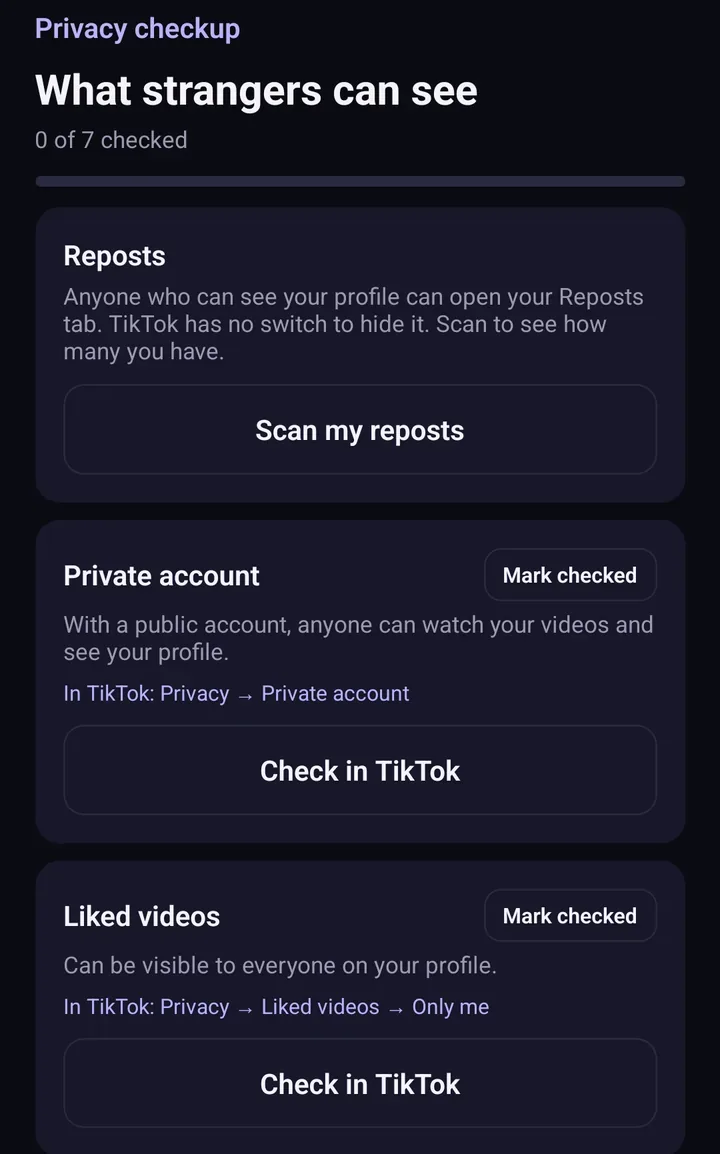
Screens from the test version of the Freshslate app. The final app may look slightly different.
Freshslate is coming soon to iPhone and Android. It scans your Reposts tab, shows them all with a chart by year, and lets you lock the ones you want to keep before removing the rest at a steady pace of about 2 seconds each, so TikTok doesn't block you. Its Privacy Checkup also walks you through who can see your reposts, likes, favorites and following list in one place. You sign in on TikTok's own page inside the app, Freshslate never sees your password, and your data stays on your phone.
See how it looks in the interactive demo.
Updated November 16, 2026. TikTok changes its menus from time to time; if a button has moved, tell us at [email protected].
The cleanest way to hide reposts is to remove them
Freshslate clears the reposts you don't want and keeps the ones you lock.
- Remove every repost in one go, and lock the ones you want to keep
- Unlike videos and clear your favorites in bulk
- Find any video you watched in your TikTok data download
- You sign in on TikTok's own page. Your password and data stay with you