 Freshslate
How to delete your TikTok search history
Your TikTok search history is the list of things you typed into the search bar. It shows up every time you tap search, which is handy until someone looks over your shoulder. Here's how to delete one search, clear them all, and make sure they don't come back.
Quick answer: Tap the search icon (magnifying glass) at the top of the Home screen, then tap the search box. Your recent searches appear below it. Tap the × next to any search to delete it. To delete everything, tap See more at the bottom of the list (if you see it), then Clear all and confirm. In some versions you can also manage it in Profile → ☰ → Settings and privacy → Activity center. Nobody else can see your search history.
Where to see your TikTok search history
Your search history isn't on your profile and it isn't a tab anywhere. It appears in one place most of the time: right under the search box, the moment you tap it.
- Open TikTok. You'll land on the Home screen (For You or Following).
- Tap the magnifying glass in the top right corner. On some versions it's a search bar at the top of the screen instead.
- Tap inside the search box. Don't type anything yet.
- Your recent searches show up in a list under the box, newest at the top.
Only a handful of searches show at first. If you see See more under the last one, tap it to show a longer list. That's the full search history the app shows you.
Not seeing any searches? If the list is empty, you may have cleared it before, you might be on a different account, or your searches might be hidden behind the "You may like" box. Scroll down a little. See the section on suggestions if what you see doesn't look like things you typed.
How to delete one search on TikTok
Maybe you only want to get rid of one embarrassing search and keep the rest. That's easy.
On iPhone and Android
- Tap the search icon at the top of the Home screen.
- Tap the search box so your recent searches appear.
- Find the search you want gone.
- Tap the × on the right side of that line.
It disappears right away. In most versions there's no "are you sure?" pop-up for a single search, so be careful not to tap the wrong one. You can't undo it, but you can just search for the same thing again if you need it back.
On some Android phones and some versions, you may need to press and hold the search instead, then tap Delete. If there's no × on your screen, try a long press.
How to clear all search history on TikTok at once
If you want a clean slate, you can delete everything in one go instead of tapping × over and over.
On iPhone and Android
- Tap the search icon at the top of the Home screen.
- Tap the search box.
- Scroll to the bottom of your recent searches and tap See more (if it's there).
- Tap Clear all. In some versions this button sits at the top of the list instead.
- Tap Clear (or Confirm) when TikTok asks if you're sure.
The whole list should now be empty. Close the search screen and open it again to check.
TikTok changes the wording sometimes. You might see "Clear all", "Clear search history" or a small trash can icon. They all do the same thing. If you don't see any of them, your list may be short enough that TikTok only shows the × buttons — in that case, tap × on each one, or try the Activity center below.
Search history in the Activity center
In some newer versions, TikTok has added a search history page to the Activity center, the same place you find watch history. It shows a longer list of what you searched and, in some versions, lets you pick several to delete at once.
- Tap Profile in the bottom right corner.
- Tap ☰ in the top right corner.
- Tap Settings and privacy.
- Tap Activity center.
- Tap Search history if you see it.
- Tap Select, choose the searches you want gone (or select all), then tap Delete.
If there's no Search history option on your Activity center page, your version doesn't have it yet. The steps under the search box above still work for you.
Tip: While you're in the Activity center, you'll also see your watch history. If you're cleaning up your search history because someone else uses your phone, you may want to clear that too. Our watch history guide shows how.
"You may like" and "Others searched for" are not your search history
A lot of people search "how to clear TikTok search history you may like" or "delete TikTok search history suggestions". This trips people up, so let's be clear about what each thing on the search screen is.
Your recent searches
These are things you actually typed and searched for. They have an × next to them (or a clock icon in some versions). These are your search history, and you can delete them.
"You may like"
Under your recent searches there's often a section called You may like (or "Suggested searches" or "Trending"). These are not things you searched. TikTok picks them based on what's popular and what it thinks you're into, from the videos you watch and like.
Because they aren't your history, "Clear all" doesn't remove them. What you can do:
- In some versions there's a Hide button, an eye icon or a refresh arrow next to the "You may like" title. Tap it to hide the suggestions or get new ones.
- If you long-press a single suggestion, some versions let you report it or say you're not interested.
- To change what TikTok suggests over time, change what it learns about you. Tap Not interested on videos you don't want, and see our guide to resetting your For You page.
If you don't see any hide option, there isn't a way to turn "You may like" off completely in your version.
"Others searched for"
When you watch a video, you might see a line like "Others searched for: …" near the comments or under the caption. This is a search suggestion based on what lots of other people searched after watching similar videos. It's not your search, and it isn't a sign that a specific person searched for you or for that video. You can tap it to run that search, or just ignore it.
Suggestions while you type
As you type, TikTok shows a drop-down list of ways to finish your search. These are mostly popular searches from everyone, not your own history. Clearing your history won't change them, which is why some people think their history "came back".
Why your TikTok search history comes back (or won't clear)
"TikTok search history not clearing", "TikTok search history glitch" and "weird search history" are common complaints. Here's each real cause.
1. You're looking at suggestions, not history
This is the most common one. If what you see after clearing is under "You may like", or appears as you type, it's suggestions. See the section above.
2. The app hasn't refreshed yet
Sometimes the list looks the same right after you clear it. Close TikTok fully (swipe it away in your phone's app switcher) and open it again. If the searches are gone after the restart, it worked.
3. You're signed in on another phone, tablet or computer
Searches can show up from other devices you're signed in on. If you clear on your phone but keep searching on a tablet, the list fills up again. Clear it on each device, or sign out of the ones you don't use. You can check where you're signed in under Profile → ☰ → Settings and privacy → Security and permissions (look for "Manage devices" or "Your devices" — the wording varies).
4. An old cache is showing old searches
The app saves some data on your phone to load faster. If old searches keep popping back, clear the cache: Profile → ☰ → Settings and privacy → Free up space → Cache → Clear. This doesn't delete your account, videos or likes. It also doesn't touch drafts — but don't clear all app data or delete the app without reading our drafts guide first, because drafts only live on your phone.
5. The app is out of date
Older versions can have bugs with the Clear all button. Update TikTok from the App Store or Google Play, then try again.
6. There are searches you didn't make
If your recent searches show things you know you never typed, and they're not suggestions, someone else may be using your account. Maybe a family member on a shared tablet, or someone who knows your password. Check your devices (see cause 3), sign out of any you don't know, and change your password. Turn on 2-step verification in Security and permissions too.
7. You searched again without noticing
Tapping a hashtag, a sound or an "Others searched for" link can count as a search and add it to your list. That can make it look like old searches are back.
How to delete TikTok search history on PC and the website
On a computer, you use TikTok at tiktok.com in your browser. The search history works a bit differently there.
- Go to tiktok.com and sign in.
- Click the Search box (on the left menu or at the top, depending on the layout).
- Your recent searches drop down under the box.
- Hover over one and click the × to remove it. If you see Clear all, click it to remove all of them.
The website's list may not match your phone's list exactly. Clear both if you want them both empty.
Clearing browser history (for TikTok on a computer)
People also search "clear TikTok browsing history" and "clear browser history TikTok". If you used TikTok in a browser, the pages you opened (like a video or a search results page) are also saved in your browser's own history, separate from TikTok. To remove them:
- Chrome or Edge: press Ctrl+H (Windows) or Cmd+Y (Mac), search "tiktok", tick the results and click Delete. Or use "Clear browsing data" to remove all of it.
- Safari on Mac: open History → Show All History, search "tiktok", select the entries and press Delete.
- Firefox: press Ctrl+Shift+H (Windows) or Cmd+Shift+H (Mac), search "tiktok", select and delete.
If you watch TikTok in Safari or Chrome on your phone instead of the app, the same idea applies: clear the browser's history in its settings.
TikTok Lite, TikTok Shop, and searching without an account
TikTok Lite
TikTok Lite is a smaller version of the app in some countries. The search screen looks almost the same: tap the search icon, tap the box, then tap × next to a search, or "Clear all" if it's shown. TikTok Lite often has fewer settings, so the Activity center search history page may not be there.
TikTok Shop
When you search inside TikTok Shop, those searches can have their own recent list on the Shop search screen. Open Shop, tap its search bar, and look for an × or a trash can icon next to "Recent" or "History". Clearing your main TikTok search history may not clear the Shop list, so check both.
Without an account
If you use TikTok without signing in, your searches are saved on that phone or in that browser, not to an account. To delete them, clear them with × under the search box like normal. If that's not offered, clear TikTok's cache in the app, or clear your browser's history and site data if you used the website.
Can people see what you search on TikTok?
No. Your search history is private. Other users can't see what you searched, and the person or video you searched for isn't told. Creators don't get a list of people who searched for them.
Here's what's true and what isn't:
| Question | Answer |
|---|---|
| Can my followers see my searches? | No |
| Does someone know if I search their name? | No. Searching doesn't notify them |
| Can someone see I viewed their profile? | Only if Profile views is turned on for both of you. That's about visiting a profile, not searching |
| Does "Others searched for" show my searches? | No. It's based on what lots of people search |
| Can someone using my phone see my searches? | Yes, if they open TikTok while you're signed in |
| Does TikTok itself see my searches? | Yes. TikTok uses them to pick videos and suggestions |
| Can parents see my searches with Family Pairing? | Family Pairing lets a parent manage settings like screen time and content limits. Check the current Family Pairing options in the app for exactly what's shared |
So the main risk is someone picking up your phone, not other users online. That's why clearing your search history is worth doing if you share a device.
Your search history isn't the only thing to think about, though. Your likes, favorites, reposts and following list can be seen by others, depending on your settings. Our guide can people see your TikTok reposts, likes and favorites walks through each one, and how to make your liked videos private covers the most common worry.
Does deleting TikTok search history delete it for good?
People search "permanently delete TikTok search history". Here's the honest picture:
- In the app, yes. Once you clear it, those searches stop showing under the search box and in the Activity center.
- On TikTok's side, TikTok may still keep some records of your activity for a while, as its privacy policy describes. Clearing the list in the app doesn't promise that every record is wiped from TikTok's servers.
- In your data download, your search history is usually one of the things included. TikTok says the last 24 to 48 hours of some data may be missing, so very new searches may not show yet. If you want to see what TikTok has saved, request your data and look at the "Searches" part. Our data download guide shows how, and our free viewer and TikTok stats page can show your searches from the file, read in your browser only.
- For your For You feed, clearing searches alone usually won't change it much. TikTok learns mostly from what you watch and how long you watch.
If you want TikTok to have nothing at all, the only full option is deleting your account, which also deletes your videos, likes and followers. For most people, clearing search history and tightening privacy settings is enough.
How to keep your searches private from now on
Most versions of TikTok don't have a switch that stops saving searches, the way some apps have a "pause history" button. So if you don't want a list building up again, these habits help:
- Clear it when you're done. After a search you'd rather not leave on the screen, tap × on it right away. It takes two seconds.
- Lock your phone. Since nobody can see your searches online, the main risk is someone opening the app on your phone. A screen lock with a passcode or face unlock solves most of it.
- Use a separate account on shared devices. If a family tablet is signed in to your account, everyone who uses it adds to your search history and can see yours. Sign out, or add a second account for them with Profile → your username at the top → Add account.
- Search in a private browser tab. If you use tiktok.com without signing in, a private or incognito window won't keep the searches after you close it.
- Check the Activity center now and then. If your version has a Search history page there, it can hold more than the short list under the search box.
None of this changes what TikTok learns from your searches. It only keeps the list off your screen.
Questions people ask
How do I delete my TikTok search history?
Tap the search icon, tap the search box, and tap × next to a search. For everything, tap "See more", then "Clear all".
How do I delete all search history on TikTok at once?
Use "Clear all" under your recent searches, or Settings and privacy → Activity center → Search history → Select → Delete if your version has it.
Can you delete TikTok search history?
Yes, one search at a time or all at once, on the app and the website.
Can people see what you search on TikTok?
No. Only you can see your search history, unless someone uses your phone while you're signed in.
Does TikTok tell someone if you search their name?
No. Searching for a person doesn't send them anything.
Why does my TikTok search history keep coming back?
Usually what you see are suggestions, not history. Otherwise, restart the app, clear the cache and clear it on every device you're signed in on.
How do I clear "You may like" on TikTok?
You can't clear it like history because those aren't your searches. Some versions have a Hide or refresh button next to the title.
Why is my TikTok search history not showing?
You may have cleared it already, be on a different account, or need to scroll past suggestions. Update the app if the list never appears.
Why does my TikTok search history look weird?
It often mixes in suggestions and hashtags you tapped. If there are searches you truly didn't make, check your signed-in devices and change your password.
How do I delete TikTok search history on PC?
On tiktok.com, click the search box and click × next to each search, or Clear all. Also clear your browser's history if you want no trace on the computer.
How do I clear search history on TikTok Lite?
Same as the main app: tap search, tap the box, tap × or Clear all.
Does clearing search history reset my For You page?
Not really. See our reset guide for what actually changes your feed.
Can I see my deleted TikTok search history?
Not in the app. A data download made after you cleared it may not include those searches, and there's no way to restore them.
Does TikTok have a search history log?
In most cases, yes: your data download usually lists your searches with dates.
Is clearing cache the same as clearing search history?
No. Clearing cache frees up space on your phone. Use × or Clear all to delete searches.
Clean up the parts people can see
Your search history is private, so clearing it is mostly about other people using your phone. The things that strangers and classmates can actually see are your reposts, your likes (if they're public) and your favorites (if you chose to show them). Those can pile up into hundreds of videos with no button to remove them all.
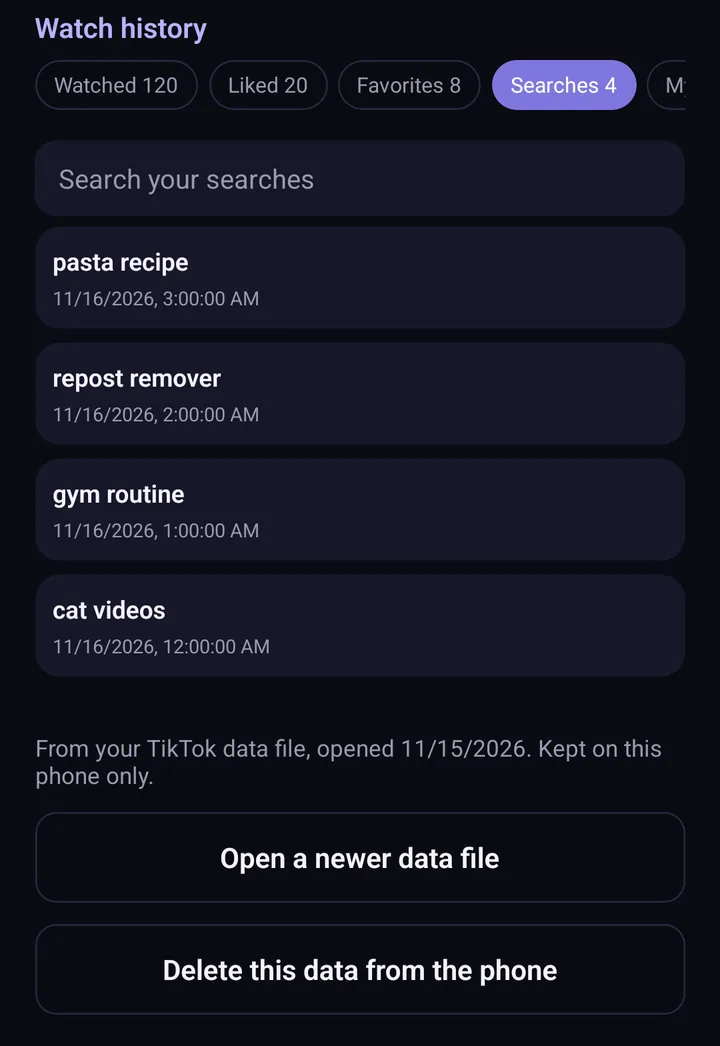
Screens from the test version of the Freshslate app. The final app may look slightly different.
Freshslate, our app coming soon to iPhone and Android, removes your reposts in bulk, unlikes videos and clears favorites, with a Privacy Checkup that walks you through who can see what. It works on your phone with no Freshslate servers, and you sign in on TikTok's own page. Want a feel for it? Try the interactive demo, or start with our guide to deleting all your reposts.
Updated November 16, 2026. TikTok changes its menus from time to time; if a button has moved, tell us at [email protected].
Clean up what people can see, too
Search history is private, but your reposts, likes and favorites may not be. Freshslate clears them in bulk, right on your phone.
- Remove every repost in one go, and lock the ones you want to keep
- Unlike videos and clear your favorites in bulk
- Find any video you watched in your TikTok data download
- You sign in on TikTok's own page. Your password and data stay with you