 Freshslate
How to delete a repost on TikTok
Reposted something you don't want on your profile anymore? Here is how to delete a repost on TikTok on iPhone, Android and a computer, how to find the one you're looking for, and what to do when the Remove repost button just isn't there.
Quick answer: Go to your profile and tap the Reposts tab (the icon with two arrows). Open the video you want gone, tap the Share arrow on the right side, then tap Delete repost (some versions say Remove repost). You can also press and hold the video and tap Remove repost, or tap your profile photo at the bottom of the video and tap Remove. The video leaves your Reposts tab right away, and any replies people left on your repost are deleted with it. The original video stays up on the creator's account, and TikTok does not appear to tell the creator you removed it.
What "deleting a repost" really does
People type this a lot of different ways: "delete repost on TikTok", "remove repost", "unrepost", "un repost", "cancel a repost" or "take off a repost". They all mean the same thing. In the Share menu, TikTok's Help Center calls the button Delete repost. When you press and hold the video, it says Remove repost. Look for either one on your screen.
When you repost a video, you are not making a copy of it. You are just pinning someone else's video to your own Reposts tab and showing it to some of your friends and followers. So when you remove the repost, here is what happens:
- It leaves your Reposts tab. People who open your profile won't see it there anymore.
- It stops showing in your friends' feeds with your profile photo and nickname on it.
- Replies to your repost are deleted. If people replied to your repost, those replies go away with it.
- The original video stays exactly where it is. You can't delete another person's video, and removing your repost doesn't hurt their views or likes.
- Your like, comment or favorite on that video stays. Those are separate. If you liked the video too, you need to unlike it on its own.
Some people search "how to remove a repost on TikTok without deleting" because they are scared they'll delete the actual video. Don't worry. Removing a repost only takes away your repost and the replies people left on it. It can't delete the video itself, and it can't touch your own posted videos either.
If what you really want is to stop people from seeing your reposts without removing them, that's a different question. TikTok has no hide switch, but you do have a few options. We cover them in how to hide reposts on TikTok. And if you only reposted something a minute ago by mistake, the shortcut in how to undo a repost on TikTok is even faster.
Find the Reposts tab on your profile
Every guide on this starts with "go to your Reposts tab", so let's make sure you can find it first.
- Open TikTok and tap Profile in the bottom right corner.
- Look at the row of small icons right under your bio and buttons. That row usually has your videos (a grid icon), sometimes a lock icon for private videos, the Reposts icon (two arrows making a loop), the Favorites icon (a bookmark) and the Liked icon (a heart).
- Tap the two-arrows icon. That's your Reposts tab. Everything you have reposted and not removed shows up here, newest first.
Don't see the two-arrows icon? In most versions of the app, the Reposts tab only shows up once you have at least one repost. If you have zero reposts, there's nothing to show, so TikTok hides the tab. If you're sure you have reposts and still don't see it, update the app and check again. Some older versions and TikTok Lite in some regions lay out the profile differently.
The tab is easy to mix up with your Favorites (bookmark) tab. Favorites are videos you saved for yourself. Reposts are videos you shared to your friends. If a video is in Favorites, the Remove repost button won't help you. Clearing favorites works a different way, which we explain in how to remove TikTok favorites.
Delete a repost on iPhone
These steps work on iPhone and iPad with the current TikTok app from the App Store.
- Open TikTok and tap Profile at the bottom right.
- Tap the Reposts tab (the two-arrows icon).
- Tap the video you want to remove. It opens full screen.
- Tap the Share arrow on the right side of the screen. It's the curved arrow, under the comments and favorites buttons.
- A panel slides up from the bottom. Near the top row, find Delete repost and tap it. In some versions it says Remove repost instead.
- You should see a short message saying the repost was removed. Swipe back to your profile and the video is gone from the Reposts tab.
The path looks like this: Profile → Reposts tab → open video → Share → Delete repost.
Two more ways to remove it
TikTok's Help Center lists two other ways. Both work on iPhone and Android:
- Press and hold anywhere on the video, then tap Remove repost.
- Tap your profile photo at the bottom of the video (it shows there because you reposted it), then tap Remove.
Use whichever is easiest. They all do the same thing.
A small tip for iPhone users: if your Reposts tab still shows the video after you go back, pull down on your profile to refresh it. iPhones sometimes hold onto the old list for a few seconds.
Delete a repost on Android
On Android phones (Samsung, Pixel, Motorola and others) the steps are almost the same. The only real difference is that some Android versions put the Share button a little lower or label it with the number of shares under it.
- Open the TikTok app and tap Profile.
- Tap the Reposts tab with the two arrows.
- Tap the video you want to remove.
- Tap the Share arrow on the right side.
- In the panel that opens, tap Delete repost (or Remove repost, depending on your version). You can also press and hold the video and tap Remove repost.
- Go back to your profile. Pull down to refresh if the video still shows.
If you use your phone's "back" gesture or button right after removing it, that's fine. The repost is already gone. You don't need to tap any "Save" or "Done" button.
Using TikTok Lite? People do search "how to delete a repost on TikTok Lite". TikTok Lite is a smaller app, and in many regions it doesn't have every feature of the full app. If you can't find the Reposts tab or the Remove repost button in Lite, the easiest fix is to sign in to the full TikTok app or the website and remove it there. Your reposts belong to your account, not to the app, so removing it anywhere removes it everywhere.
Remove a repost on the TikTok website (PC or Mac)
Plenty of people search "remove repost TikTok website", "on PC" or "on laptop". You can often do it from a computer, but the website changes more often than the app, so the buttons may not be in exactly the same spot for you.
- Go to tiktok.com in Chrome, Safari, Edge or Firefox and log in.
- Click your profile picture (top right, or Profile in the left menu).
- Look for the Reposts tab next to Videos, Favorites and Liked. Click it.
- Click the video you want to remove. It opens in a bigger view.
- Look for the Share arrow or a repost button near the video. Click it and choose Delete repost or Remove repost, whichever you see.
On a computer, the Remove repost option sometimes sits in the share menu and sometimes shows as its own button next to the like and comment counts. If you hover over the buttons, the labels usually pop up.
If there's no Reposts tab on the website: TikTok has tested different profile layouts on desktop, and some people report the Reposts tab doesn't show for them on a computer. If it's missing for you, use the phone app instead. There isn't a setting you can change to make it appear on the website.
The website is handy when you have a big screen and a mouse, but it won't let you remove more than one repost at a time either. Every repost still needs its own clicks.
Remove a repost straight from your feed
You don't always have to go through your profile. If the video you reposted shows up again on your For You or Following feed, you can remove the repost right there.
- While watching the video, tap Share.
- If you've reposted it, the panel will show Delete repost (or Remove repost) instead of Repost. Tap it.
TikTok labels reposts in feeds with the profile photo and nickname of the person who reposted. So on a video you reposted, you may see your own photo at the bottom. That's a quick clue that this is one of yours, and tapping that photo and then Remove also takes the repost down.
How to find a repost you can't find
This is one of the most common problems. You know you reposted something weird, your friend saw it, but you can't spot it in your tab. Here's how to track it down.
Scroll the Reposts tab all the way
The Reposts tab loads in chunks. If you've reposted hundreds of videos, the old ones only show after you scroll a long way down. There's no search box in the Reposts tab, so scrolling is the only built-in way. Give it time to load when you reach the bottom.
Look for it on the creator's profile
If you remember who made the video, search their name, open their profile and find the video there. Tap Share. If it says Delete repost or Remove repost, that's the one. Tap it and you're done.
Check your Liked videos and watch history
Most people like a video before they repost it. If your Liked tab is on, scroll through it and look for the video, then open it and check the Share panel. You can also try your watch history, which shows roughly the last 180 days in most versions. The path is usually Profile → ☰ → Settings and privacy → Activity center → Watch history. We explain where it lives (and why it's missing for some people) in where to find your TikTok watch history.
Search your TikTok data file
If you've requested your TikTok data, the file lists what you watched, liked and favorited with dates. You can open it in our free watch history viewer to find the day you saw the video, then open the link. The file is read inside your browser and never uploaded. Getting the file takes a little time, so this works best for an old repost you really need to find. See how to download your TikTok data.
If the video was deleted or made private
If the creator deleted the video, set it to private or got banned, it may vanish from your Reposts tab without you doing anything. Sometimes it can show as unavailable instead. In that case nobody else can watch it either, so there's nothing left for people to see.
Why is the Remove repost button missing?
"Can't delete repost TikTok", "couldn't delete repost" and "remove repost button" are all real searches. If you tap Share and only see Repost, or neither, one of these is usually why.
1. You didn't actually repost this video
This sounds obvious, but it's the most common cause. If the Share panel shows Repost (not Delete repost), TikTok thinks you haven't reposted it. Maybe you favorited it, liked it or shared it in a message instead. Check your Favorites and Liked tabs. Sharing a video in a DM is not a repost and doesn't show on your profile.
2. You're on a different account
If you have more than one TikTok account on your phone, you may be signed in to the wrong one. Tap your username at the top of your profile to see which account you're using and switch if needed.
3. Your app is out of date
Older versions of TikTok had different menus and some had bugs with the repost button. Open the App Store or Google Play, search TikTok and tap Update if it shows. Then close TikTok fully and open it again.
4. The app is glitching
Sometimes the button is there but doesn't respond, or the panel looks empty. Try these in order:
- Close TikTok completely (swipe it away from your recent apps) and reopen it.
- Switch from Wi-Fi to mobile data or the other way round.
- Clear the cache: Profile → ☰ → Settings and privacy → Free up space → Cache → Clear. This doesn't delete your account or videos. On iPhone and Android the wording may be "Free up space" or "Clear cache" depending on your version.
- Restart your phone.
- Try removing it on tiktok.com instead.
Careful with drafts: clearing the cache is safe for your account, but be careful with any option that clears all app data, or with deleting and reinstalling the app. Drafts live only on your phone and can be lost that way. More in TikTok drafts on a new phone.
5. The video is no longer available
If the original was deleted or hidden, TikTok may not show you a full Share panel for it. Usually it disappears from your tab soon after.
6. You've been tapping very fast
If you've been removing lots of reposts quickly, TikTok may slow you down for a while to stop spam. Buttons can stop working or show an error like "Couldn't complete, try again later". Take a break for an hour or so and try again. TikTok doesn't publish an exact limit, so going slower is the safe move.
It said removed, but it's still there
If you removed the repost and the video is still on your Reposts tab:
- Refresh your profile. Pull down on the profile page. The tab often updates late.
- Open the video again and check the Share panel. If it now says Repost, the removal worked and you're just seeing an old copy of the list.
- Check from another device. Open your profile on tiktok.com or ask a friend to look. What they see is what matters.
- Don't tap Repost by accident. When the panel shows Repost again, tapping it will put the video right back.
If a friend says they still see your repost in their feed, it may be because their app loaded the video before you removed it. Once they refresh, it should stop showing "reposted by you".
Does the person get notified?
This is a big worry, especially if you reposted something from a friend, a crush or an ex. As far as anyone outside TikTok can tell, removing a repost does not send a notification to the creator or to your followers. There is no "they removed your repost" alert. TikTok doesn't publish a full list of its notification rules, so we can't promise this will never change, but it's how the app works for nearly everyone today.
A few things to keep in mind:
- When you first reposted the video, the creator may have seen it in their activity. Removing it later doesn't erase anything they already saw.
- Friends who saw "you reposted" in their feed before you removed it already saw it. Removing it stops new people seeing it.
- Nobody can see a list of reposts you removed. Once it's gone, it's gone from your profile.
- Any replies people left on your repost are deleted too, so the people who replied may notice their reply is gone.
Searches like "remove repost notification TikTok" are sometimes about something else: getting notified when other people repost. You can manage that in Profile → ☰ → Settings and privacy → Notifications, though the exact options depend on your version.
Reposts on someone else's profile
Can you remove a repost that's on someone else's profile? Not really. Here's what you can and can't do.
If someone reposted your video
You can't remove their repost for them. It's on their account. What you can do:
- Ask them nicely to remove their repost.
- Delete your own video or set it to Only me. Then nobody can watch it, including through their repost.
- Make your account private so only approved followers can see your videos. See how to make your TikTok account private.
- Block them if it's harassment. Blocking stops them from seeing your content.
- Turn off who can share or repost your videos where your version offers it. Look in Profile → ☰ → Settings and privacy → Privacy for options about sharing or downloads. The exact options vary.
If you see a friend's repost you don't want to see
You can't remove it from their profile, but you can tell TikTok you're not interested in the video (long-press it and tap Not interested), or mute or unfollow the person. That changes your feed, not theirs.
Other situations people ask about
Delete a repost on TikTok Live
Searches for "how to remove a repost on TikTok Live" usually come from people who shared a live stream to their profile or saw a repost while watching a live. A live stream isn't a normal video, and in most versions it doesn't sit on your Reposts tab after it ends. If you see a reposted video from a live replay on your tab, open it and remove it like any other repost.
Delete a repost "comment" or reply
When you repost, TikTok may let you add a short repost text. People who can see your repost can also reply to it, and your comment privacy settings don't apply to these repost replies. Removing the repost deletes your text and all the replies with it. To delete just one reply on your repost, open the video, tap your profile photo at the bottom, press and hold the reply and tap Delete. If you also left a normal comment under the video, that comment stays until you delete it. Long-press your comment and tap Delete. If you can't remember where you commented, our my TikTok comments tool lists every comment you wrote with links to the videos.
"Did TikTok delete my repost?"
If a repost disappeared and you didn't remove it, the creator probably deleted it, made it private, or their account was removed. TikTok may also remove videos that break its rules. Your other reposts should be fine.
Should I delete and repost my own TikTok?
Some searches like "should I delete and repost my TikTok" are about your own posted video, not a repost. That's a different topic. Deleting your own video removes its views, likes and comments forever. Many creators say posting the same video twice can look like spam, so think before you do it.
Reposts on Instagram
Instagram has its own repost feature with its own rules. This guide is just for TikTok. On Instagram, the steps and menus are different.
Delete all reposts at once
Lots of people searching "delete repost TikTok" actually want to clear all of them. TikTok has no "remove all reposts" button, and there's no setting that does it. One by one is the only built-in way. We go through your real options in how to delete all reposts on TikTok.
Cheat sheet table
| Where you are | Steps | Notes |
|---|---|---|
| iPhone app | Profile → Reposts tab → video → Share → Delete repost | Pull down to refresh if it still shows |
| Android app | Profile → Reposts tab → video → Share → Delete repost | Same as iPhone; Share may sit slightly lower |
| Website (PC/Mac) | tiktok.com → Profile → Reposts → video → Share or repost button → Delete repost or Remove repost | Reposts tab may not show for everyone on desktop |
| From the feed | Share → Delete repost | Your photo at the bottom shows it's your repost |
| Any video you reposted | Press and hold → Remove repost, or tap your profile photo at the bottom → Remove | Same result as the Share button |
| TikTok Lite | Use the full app or website if Lite has no Reposts tab | Removal shows everywhere on your account |
| Someone else's repost of your video | Ask them, delete or hide your video, or block | You can't remove it from their profile |
Questions people ask
How do I delete a repost on TikTok?
Open your profile, tap the Reposts tab (two arrows), open the video, tap Share and tap Delete repost. You can also press and hold the video and tap Remove repost. The video leaves your profile right away.
How do you unrepost a TikTok video?
"Unrepost" is the same as removing a repost. Open the video, tap Share and tap Delete repost (or Remove repost in some versions). TikTok doesn't have a separate "unrepost" button.
Why can't I remove a repost on TikTok?
Usually because you didn't repost that exact video (you liked or favorited it instead), you're signed in to another account, or the app needs an update. Close and reopen the app, clear the cache, or try tiktok.com.
Where is the Remove repost button?
Tap the Share arrow on the right side of the video and look at the top row of the panel. There it's usually called Delete repost. If you press and hold the video instead, the menu says Remove repost. If you only see Repost, you haven't reposted that video.
Does the creator know if I remove a repost?
There's no notification when you remove a repost. They may have seen your repost when you first made it, but removing it doesn't send them anything.
Can you delete a repost on TikTok on PC?
Often, yes. Go to tiktok.com, open your profile, click Reposts, open the video and choose Delete repost or Remove repost. If the website doesn't show the Reposts tab for you, use the phone app.
Does removing a repost delete the original video?
No. Only the creator can delete their video. Removing your repost just takes it off your profile and out of your friends' feeds.
Where is my Reposts tab on TikTok?
On your profile, in the row of icons under your bio. It's the icon with two arrows in a loop. If you have no reposts, the tab may not show at all.
How do I remove a repost from my TikTok profile without opening the video?
The app doesn't let you remove a repost from the grid. You have to open the video first. Once it's open, you can tap Share, press and hold the video, or tap your profile photo at the bottom. In most versions, pressing and holding the thumbnail in the grid doesn't offer Remove repost.
How do I delete a repost on TikTok 2026?
The steps for 2026 are the same as above: Profile, Reposts tab, open the video, Share, Delete repost. If your menus look different, update the app first.
Does removing a repost delete the replies?
Yes. TikTok says that when you remove a repost, all the replies to it are deleted too. If you want to keep the repost but lose one reply, delete just that reply instead.
Can I delete a repost someone else made of my video?
No. You can ask them to remove it, delete your own video, set it to Only me, make your account private, or block them.
Why does my repost keep coming back?
Most of the time the list just hasn't refreshed. Pull down on your profile. Also check that you didn't tap Repost again by accident after removing it, since the button switches back to Repost right away.
Can you delete a repost on TikTok for free?
Yes. Removing reposts one at a time is built into TikTok and costs nothing. You don't need any app for one or two reposts.
How do I remove a repost on TikTok on iPhone?
Tap Profile, then the Reposts tab, open the video, tap Share and tap Delete repost. If the tab looks the same after, pull down to refresh.
Do removed reposts still show on people's For You page?
After you remove it, TikTok stops showing it as your repost. Someone who already had it loaded might see it once more until their feed refreshes. The video itself can still appear on For You pages because it's the creator's video, not yours.
Can people see a list of reposts I deleted?
No. There's no history of removed reposts on your profile. Once removed, nobody can see that you ever reposted it on your profile.
Faster: delete all your reposts at once with Freshslate (coming soon)
For one or two reposts, the steps above are all you need. But if you've been reposting for a year or two, removing them one by one means hundreds of taps, and TikTok may slow you down if you go too fast.
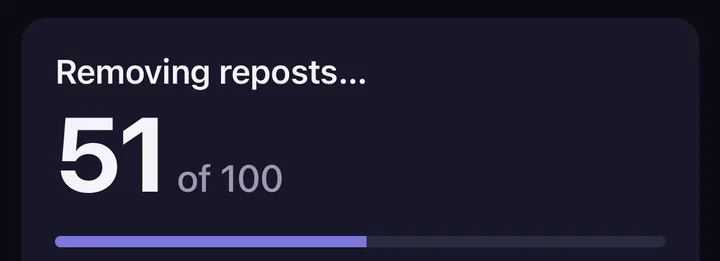
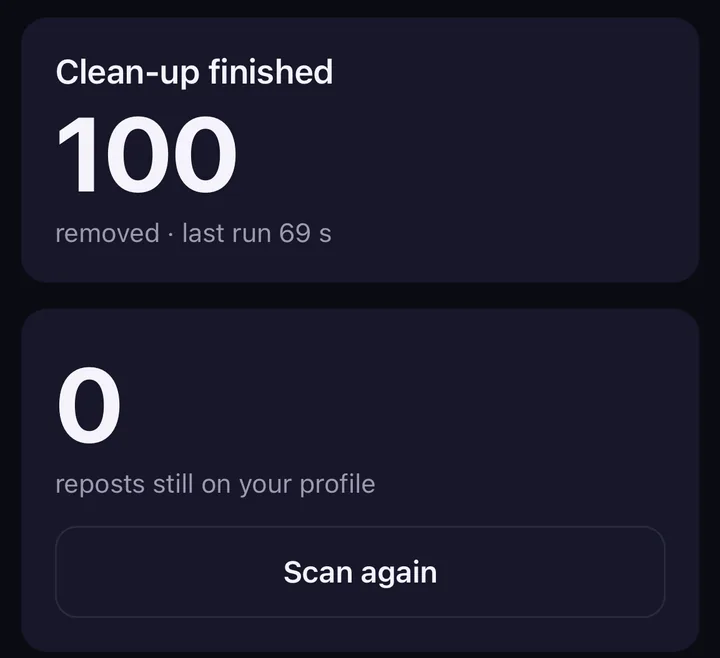
Screens from the test version of the Freshslate app. The final app may look slightly different.
That's why we're building Freshslate, coming soon to iPhone and Android. It scans your Reposts tab and shows you all of them with a chart of how many you made each year. You lock the ones you want to keep, and it removes the rest at a steady pace of about 2 seconds each so TikTok doesn't block you. You can pause, leave and come back. You sign in on TikTok's own page inside the app, so Freshslate never sees your password, and there are no Freshslate servers. Your data stays on your phone.
Want to see how it works first? Try the interactive demo on a sample profile.
Updated November 16, 2026. TikTok changes its menus from time to time; if a button has moved, tell us at [email protected].
Have a lot of reposts to clear?
Freshslate removes your reposts in bulk, at a safe pace, right on your phone.
- Remove every repost in one go, and lock the ones you want to keep
- Unlike videos and clear your favorites in bulk
- Find any video you watched in your TikTok data download
- You sign in on TikTok's own page. Your password and data stay with you